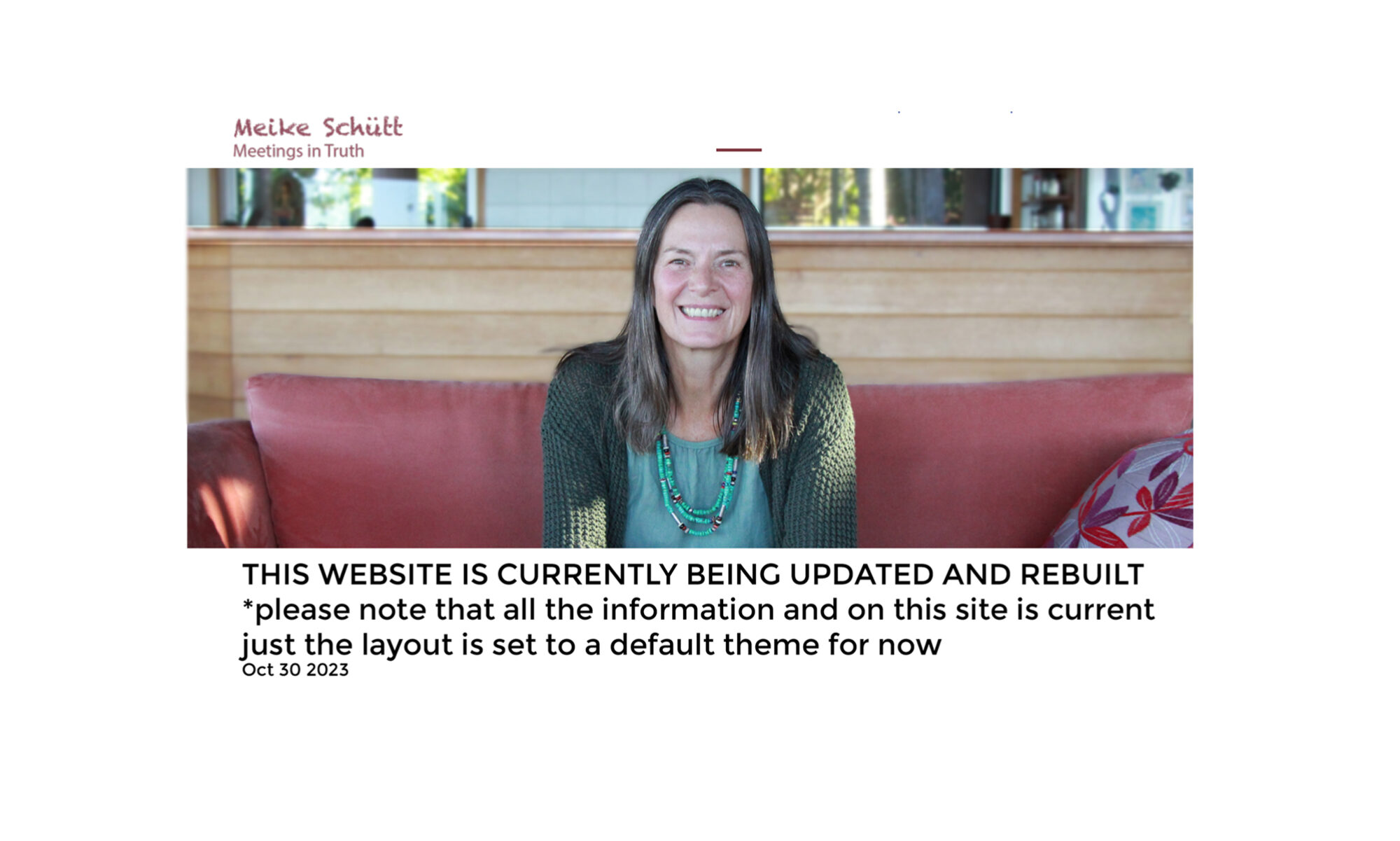
Online Meeting with Meike
Time: Weds Nov 15 2023
AEST 6pm Byron Bay
https://www.timeanddate.com/worldclock/converter.html?iso=20220418T090000&p1=4401Join Zoom Meeting
https://us02web.zoom.us/j/88416033849
Meeting ID: 884 1603 3849
Time: Weds Nov 15 2023
AEST 6pm Byron Bay
https://www.timeanddate.com/worldclock/converter.html?iso=20220418T090000&p1=4401Join Zoom Meeting
https://us02web.zoom.us/j/88416033849
Meeting ID: 884 1603 3849
Please save this webpage, or copy the Zoom address for you to be able to use the for the meeting as there will be no confirmation or details send via email. thank you
Practical information Online Zoom Meetings:
For the meeting the online video platform ‘Zoom’ is used which is easy to use. You can participate over the internet from all over the world with PC, Mac, Linux and iOS-phone/tablet or Android.Audio/Video:
If you would like to check if your audio/video is functioning well, please arrive 15 minutes before the meeting starts. After the check, you’re welcome to hang out, or to turn off video & sound until start time. However, you can also already test your audio/video in advance via this link: https://support.zoom.us/hc/en-
For the meeting the online video platform ‘Zoom’ is used which is easy to use. You can participate over the internet from all over the world with PC, Mac, Linux and iOS-phone/tablet or Android.Audio/Video:
If you would like to check if your audio/video is functioning well, please arrive 15 minutes before the meeting starts. After the check, you’re welcome to hang out, or to turn off video & sound until start time. However, you can also already test your audio/video in advance via this link: https://support.zoom.us/hc/en-
Recording:
The meeting will be recorded and shared on YouTube and possibly the website (https://meikeschuett.com/) afterwards. If you prefer not to be visible or recorded you can let the host know during the meeting (before you speak) by using the chatbox. The host can either leave the video on Meike so there will be only audio or the recording can be paused completely so your sharing will not be in the recording at all. If somehow afterwards you do feel uncomfortable being visible/audible in the meeting you can send an email to eva@meikeschuett.com and that part can be cut out the recording (it is prefered however to know this beforehand).
The meeting will be recorded and shared on YouTube and possibly the website (https://meikeschuett.com/) afterwards. If you prefer not to be visible or recorded you can let the host know during the meeting (before you speak) by using the chatbox. The host can either leave the video on Meike so there will be only audio or the recording can be paused completely so your sharing will not be in the recording at all. If somehow afterwards you do feel uncomfortable being visible/audible in the meeting you can send an email to eva@meikeschuett.com and that part can be cut out the recording (it is prefered however to know this beforehand).
Some more general information on how to use Zoom also available via this link: https://support.zoom.us/hc/en-