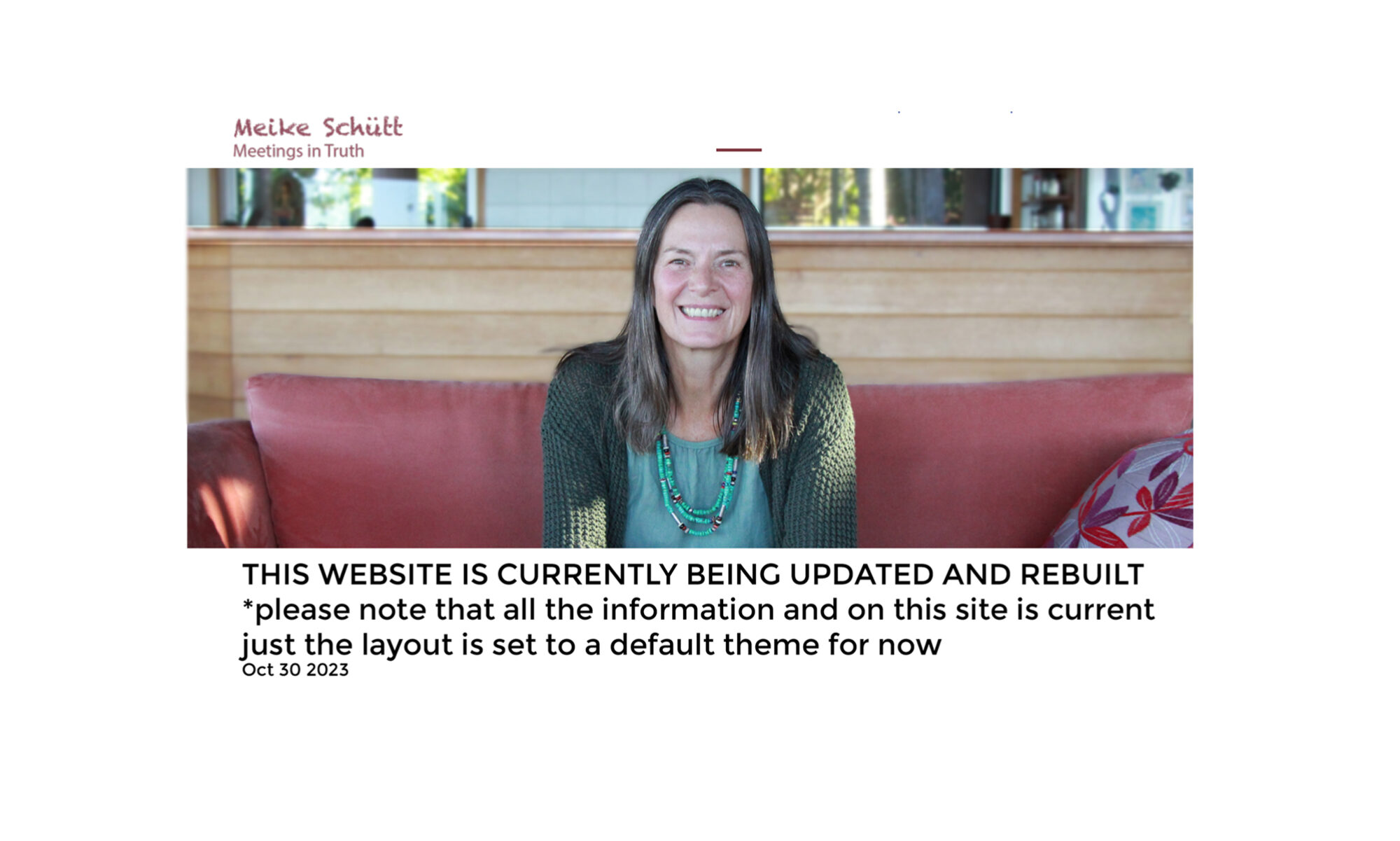
Beloved friends,
From Saturday June 20, there will be biweekly (Wednesday and Saturday) 2 hour Online meetings with Meike at 11 am CEST / 7 pm AEST. You can check the time in your location via https://www.timeanddate.com/
Recognising that the current situation has financial consequences for some, and wanting everyone to have access, the contribution is on a sliding scale basis between €0,- and €25,- depending on financial means. For the payment options please use the PayPal button or info see further below.
For the meeting the online video platform ‘Zoom’ is used which is easy to use. You can participate over the internet from all over the world with PC, Mac, Linux and iOS-phone/tablet or Android.
You can directly access the meetings via this link:
https://us02web.zoom.us/j/
Meeting ID: 955 227 518
Password: 009901
Find your local number: https://us02web.zoom.us/u/
Please see further below for more practical information on how to use Zoom and the meeting format.
If you have any questions please send an email to Eva via eva@meikeschuett.com
It will be wonderful to see you online.
Love,
Eva
Practical information:
Audio/Video:
If you would like to check if your audio/video is functioning well, please arrive 15 minutes before the meetings starts. After the check, you’re welcome to hang out, or to turn off video & sound until start time. However, you can also already test your audio/video in advance via this link: https://support.zoom.us/hc/en-
https://support.zoom.us/hc/en-
https://support.zoom.us/hc/en-
Muting/speaking:
Some more general information on how to use Zoom also available via this link: https://support.zoom.us/hc/en-
Recording:
The meeting will be recorded and shared on YouTube and possibly the website ( http://meikeschuett.com/) afterwards. If you prefer not to be visible or recorded you can let the host know during the meeting (before you speak) by using the chatbox. The host can either leave the video on Meike so there will be only audio or the recording can be paused completely so your sharing will not be in the recording at all. If somehow afterwards you do feel uncomfortable being visible/audible in the meeting you can send an email to eva@meikeschuett.com and that part can be cut out the recording (it is preferred however to know this beforehand).